Know what’s on the floor
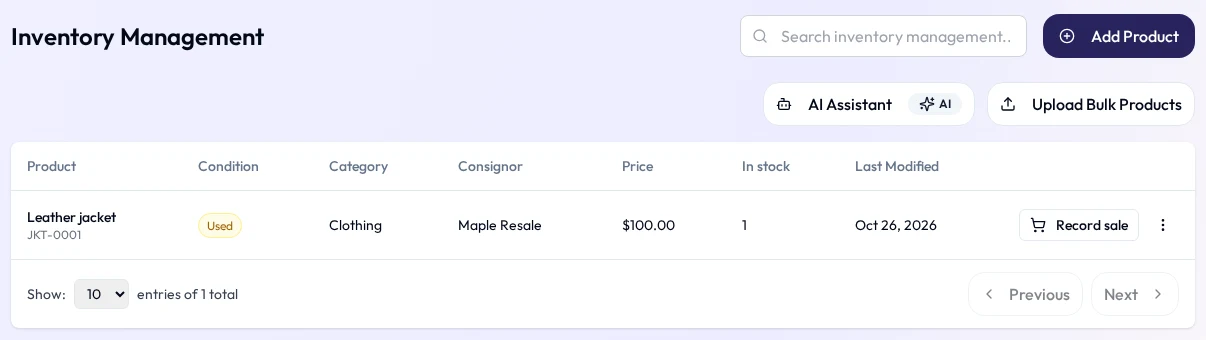
Every item with its consignor, condition, category, brand, price and quantity. Add one at a time or upload many from a CSV.

Consignment management for partner-run stores
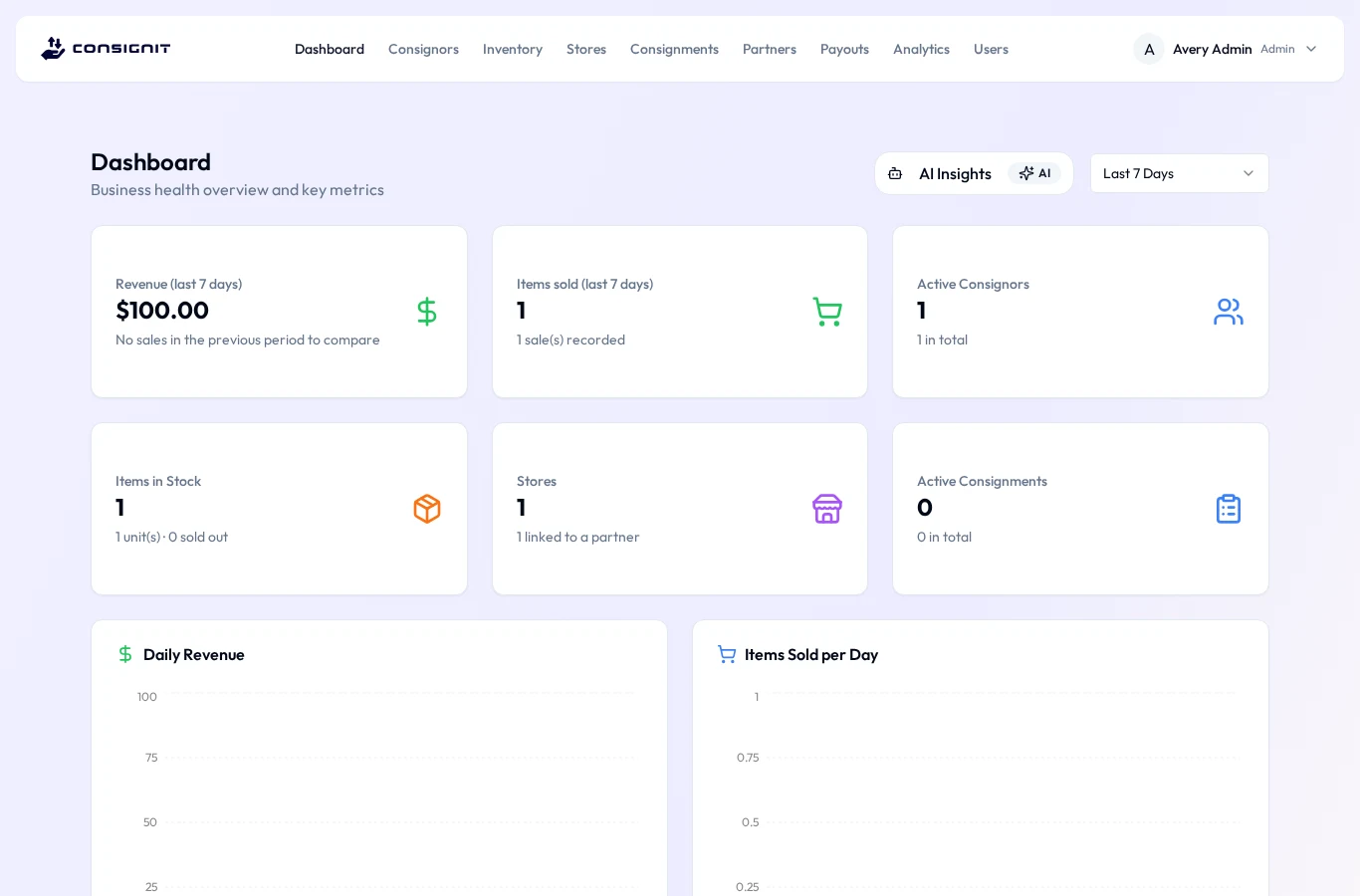
ConsignIT keeps track of the items consignors leave with you, the partner-run stores that sell them, and what each partner is owed. Record a sale and stock updates itself. Build payout batches straight from recorded sales, so no sale is ever paid twice.
Why ConsignIT
When items, stores and partners live in separate spreadsheets, nobody is quite sure what sold where or who is owed what. ConsignIT puts every step on one shared record.
Every item with its consignor, condition, category, brand, price and quantity. Add one at a time or upload many from a CSV.
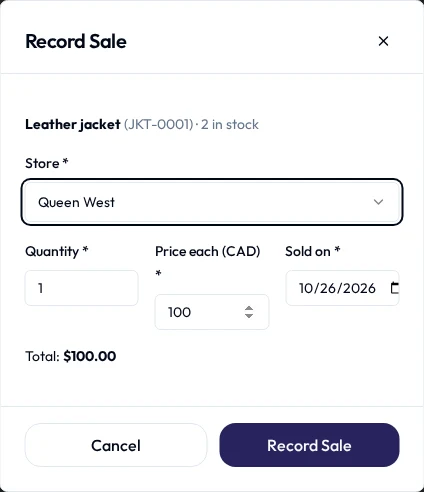
Record a sale against the store, price and date. The quantity comes out of stock straight away, and the Dashboard picks it up.
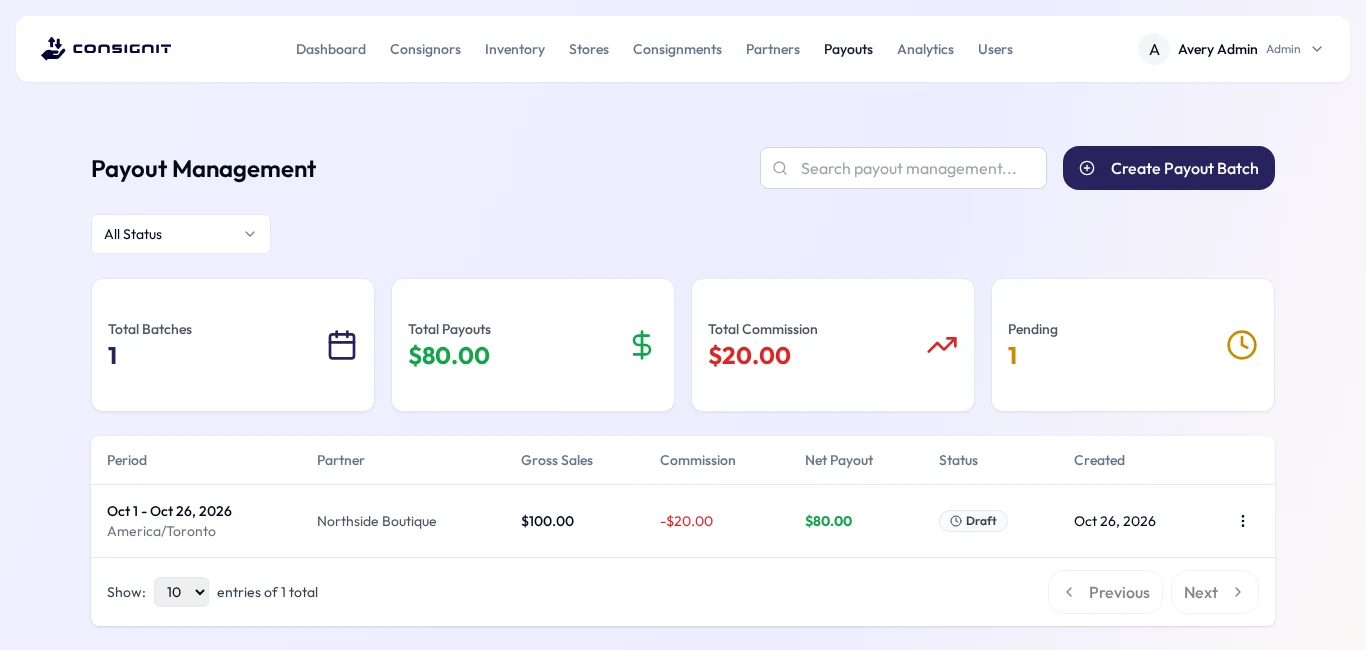
Payout batches are built from each partner’s unpaid recorded sales, with commission worked out for you. Each sale is paid once.
How it works
Each step feeds the next, so the numbers at the end come from the work your team already did.
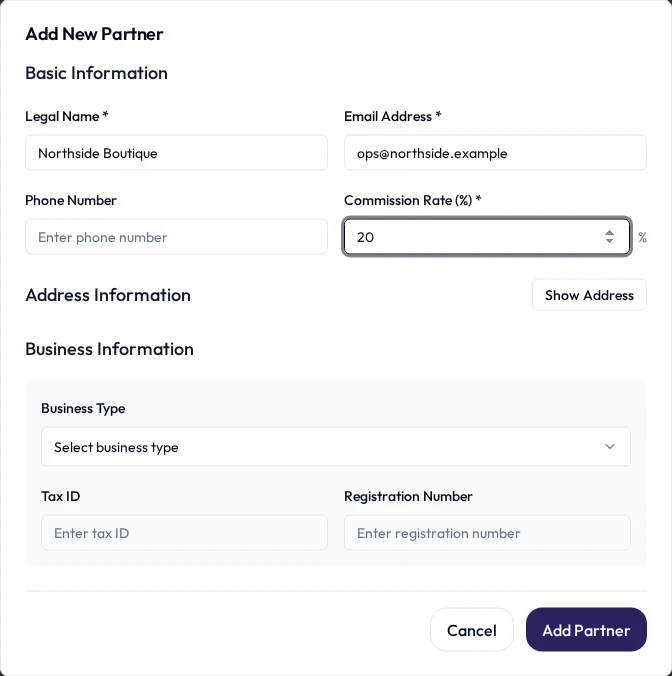
01 Set up your network
Add the people and businesses whose items you sell, with address and bank details. Bank details are visible only to admins and partners.
02 Take items in
Log each item with its consignor, condition (new or used), category, brand, price and quantity. Bringing in a lot at once? Upload a spreadsheet saved as CSV.
03 Record the sale
Pick the store it sold at, the quantity, the price each and the date. ConsignIT takes the quantity out of stock automatically, and every report is built from these records.
04 Pay the partner
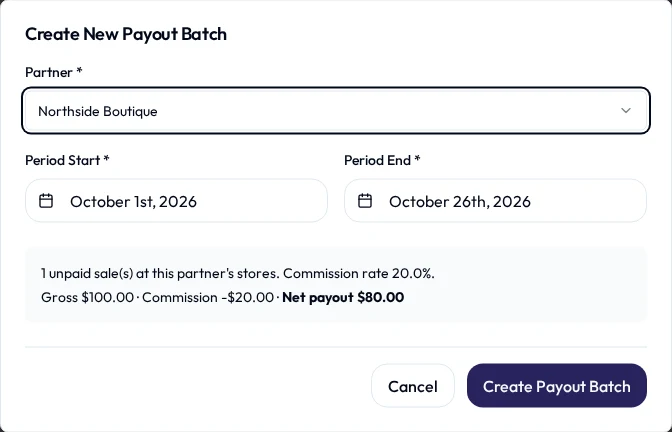
Choose a partner and a period. ConsignIT gathers that partner’s unpaid sales and shows the count, gross, commission and net payout before you create the batch.
Partner payouts
No more reconciling a month of receipts by hand. Every amount traces back to a sale someone recorded.
Got one wrong? Void the batch and its sales become available for a new one. A batch marked paid can’t be deleted.
Features
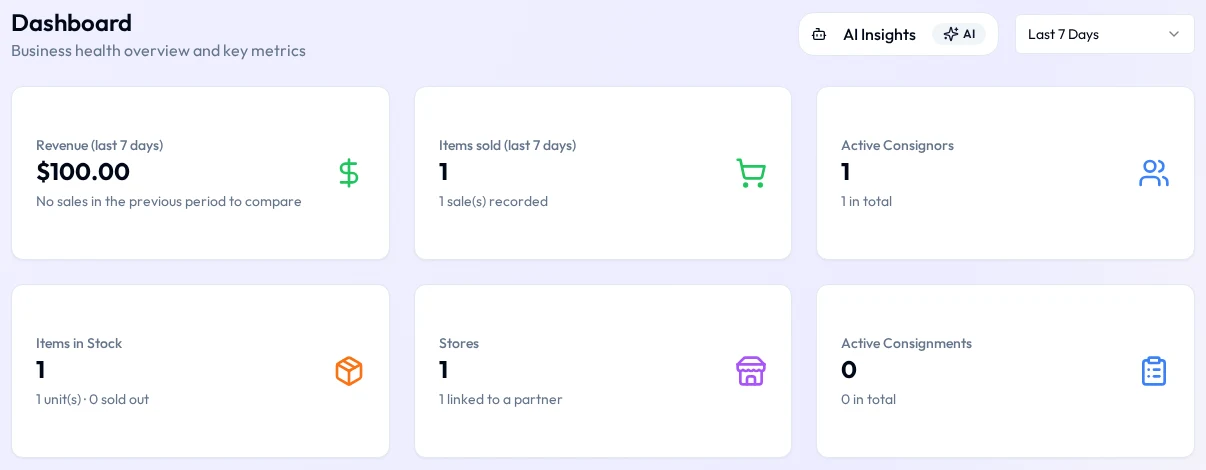
Revenue and items sold for the last 7, 14 or 30 days, compared with the period before. Daily revenue, consignor growth, and items and revenue by category for up to a year. All of it comes from what has been recorded.
Download sales, inventory, consignors, consignments or payout batches. Files open in Excel, Numbers and Google Sheets.
Each role sees only its own tasks. The rules are enforced on the server, not just hidden in the screens.
Per consignor: the product, the stores, a price and quantity for each, and the revenue split. Activate, complete or cancel.
Bring in many items at once from a spreadsheet saved as CSV. The upload window lists the columns it needs.
Coming soon: live AI
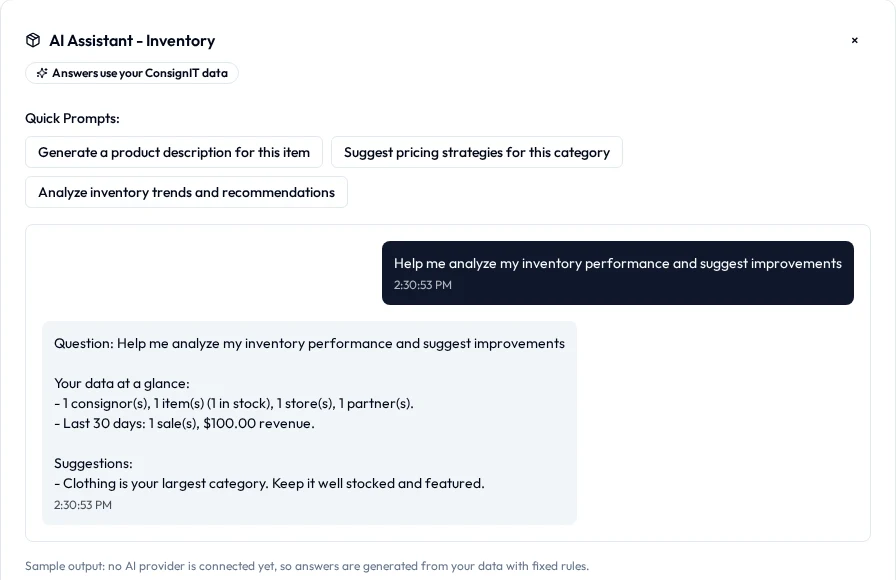
On the Dashboard, Inventory and Consignors pages, the AI Assistant answers from your own items, sales and stores, and the Add Product form can draft a description for you to edit.
Today these run in preview: answers and descriptions are generated from your data by fixed rules, and every result is labelled “Sample output”. A live AI model is not connected yet.
Who it’s for
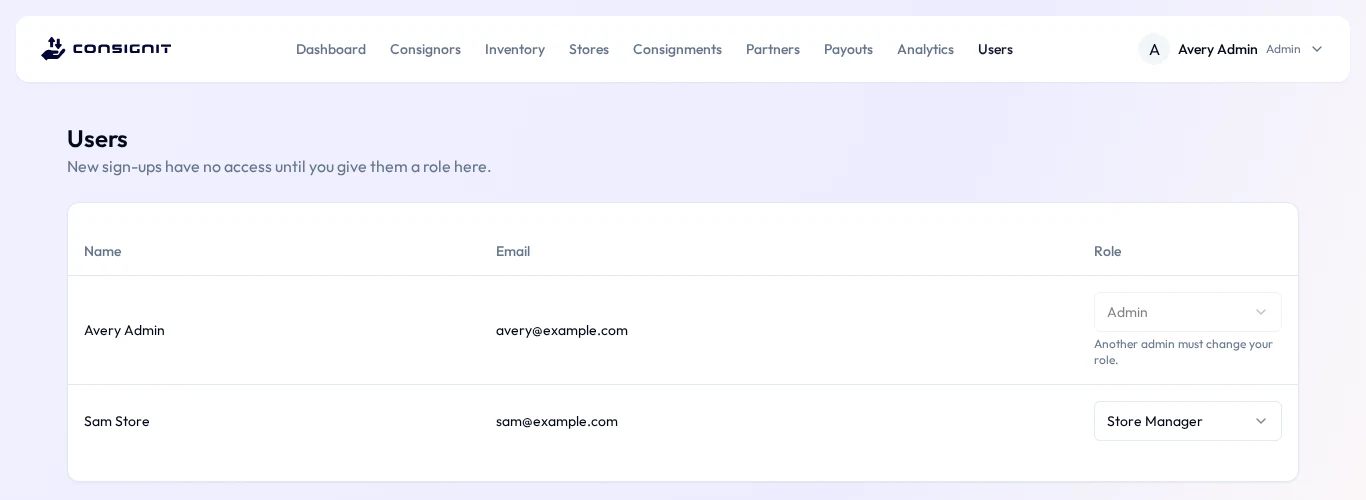
Everyone signs in with an email and password. An admin decides what each person can do, and nobody can pick their own role.
Owner or office manager
A business that runs one or more stores
Staff in a store
Someone who reads the numbers
FAQ
Straight answers about what ConsignIT does today.
Businesses that sell items on consignment through a network of stores run by partners: the owner or office that manages the network, the partners who run stores, store staff, and people who only need the numbers.
Gross is the total of the partner’s sales in the period, at stores linked to that partner. Commission is each sale times the partner’s commission rate, rounded to the cent. Net payout is gross minus commission. Each sale goes into one batch only, so it can’t be paid twice.
They sign up with their name, email and a password, then see “Waiting for access”. An admin gives them a role on the Users page, and they choose “Check again”.
Yes. From Analytics you can download sales for the selected period, inventory, consignors, consignments and (for admins and partners) payout batches as CSV files.
Not yet. The AI Assistant and AI product descriptions currently give sample output, produced from your data by fixed rules rather than a live AI model, and each result says so. Connecting a live AI service is coming.
Prices and payouts are in Canadian dollars.

Create your account, and you’re in as soon as an admin assigns your role.